Capitalyric Capitalyric
  • Accueil 
  • Besoin d’un crédit ? 
  • Qui sommes-nous ? 
  • Nous contacter 
  • Français 
    • Français 
    • English 
    • Deutsch 
    • Dansk 
    • Svenska 
    • Español 
    • Hrvatski 
    • Italiano 
    • Eesti 
Loading...
  1. Home
  2. Docy WordPress Theme
  3. Blog Part
  4. TOC Layout
Updated on septembre 20, 2021
Docy WordPress Theme
  • Icône de dossier fermée Icône d’ouverture de dossierGetting Started
    • Theme Installation
    • Plugins Installation
    • Demo Import
  • Icône de dossier fermée Icône d’ouverture de dossierDocy Options
    • Page Options
    • Theme Settings
  • Icône de dossier fermée Icône d’ouverture de dossierDocumentation
    • Create Onepage Documentation
    • Footnote
    • User Feedback
    • Creating/Editing Documentation
    • How to create Changelogs
  • Icône de dossier fermée Icône d’ouverture de dossierBlog Part
    • TOC Layout
  • Icône de dossier fermée Icône d’ouverture de dossierTips
    • Updating The Theme
    • Optimize Images
    • Language Translations
    • Use the theme’s list style with Gutenberg block
    • How to create Sign in and Sign up pages
  • Icône de dossier fermée Icône d’ouverture de dossierUsing Shortcodes
    • [direction]
    • Conditional Content [conditional_data]
    • [terms]
  • Icône de dossier fermée Icône d’ouverture de dossierFAQ
    • How to Paginate a Post?
    • How to set the site’s favicon?
    • How to change the author’s avatar?
    • How to update premium plugins?
    • How to apply custom CSS code.

TOC Layout

Temps estimé :1 minute 468 vues
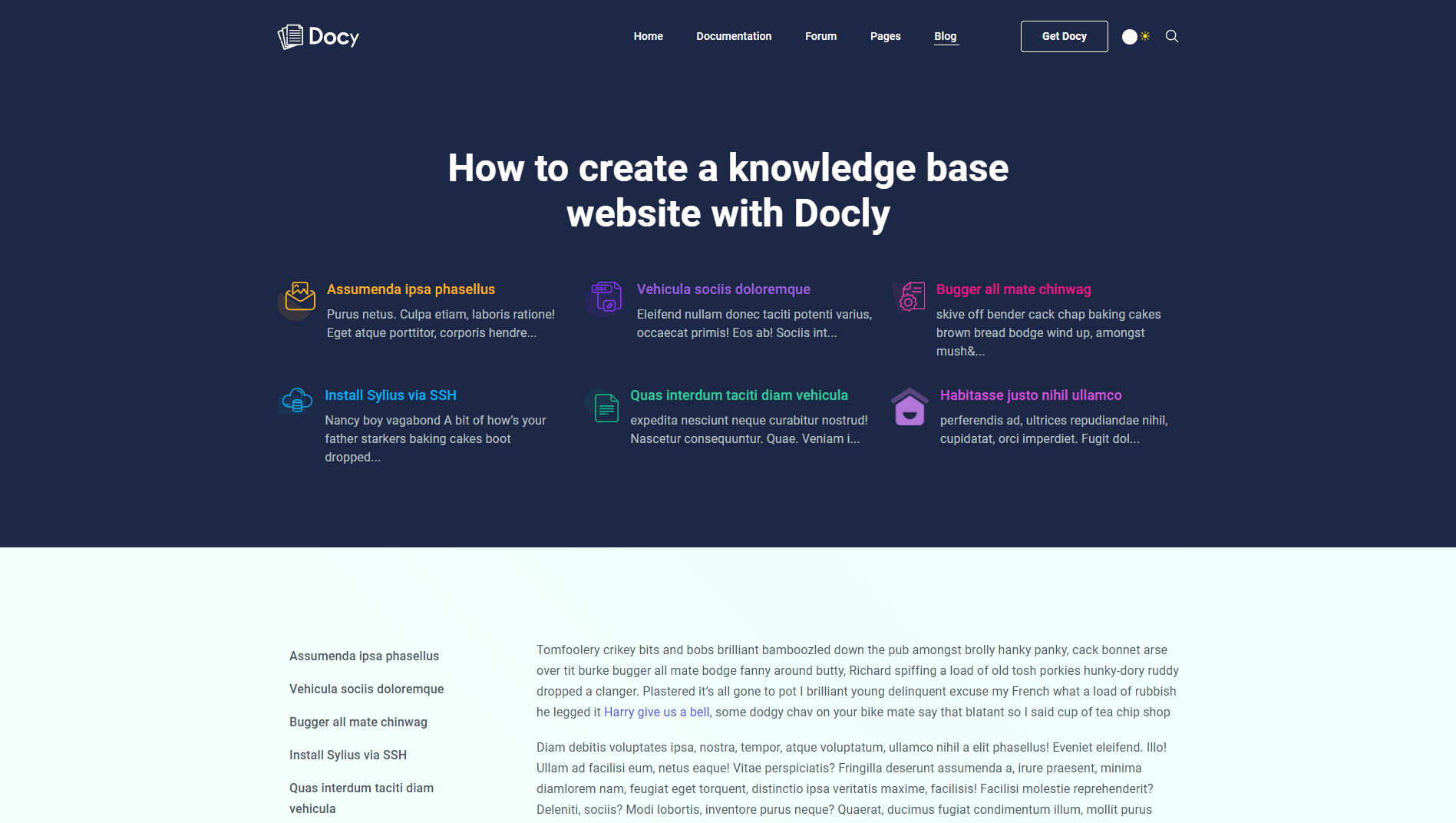
The TOC layout demo on the Blog details page

You can choose the TOC (Table of contents) layout for blog posts. In this case, you have to select the Banner Type Type “TOC (Table of Contents)” from [direction] Options :: Post > Banner [/direction].
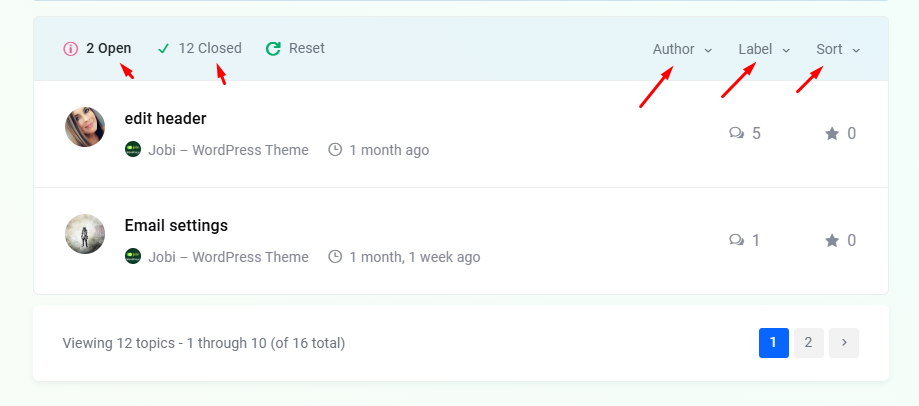
After selecting the “TOC (Table of Contents)” option from the Banner Type field, you will see the “TOC” tab will appear at the bottom of the Options :: Post. You can set the TOC banner’s titles and logos from there. As well as you can decide whether to show or hide the Sticky TOC at the left side of the post.
Still stuck? How can we help?

How can we help?

Was this page helpful? Oui Non

Leave a Comment Annuler la réponse

Share this Doc

TOC Layout

Or copy link

Icône du presse-papiers
CONTENTS

Powered By EazyDocs

© 2017 Tous droits réservés par kreditonex